


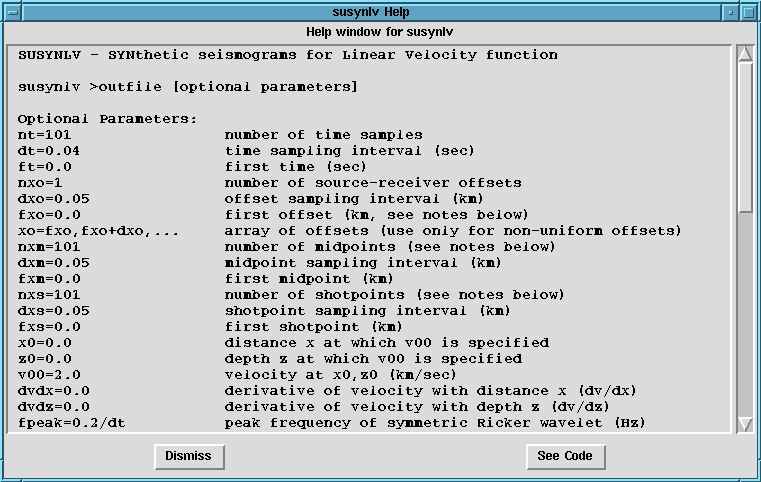
Figure: Scrollable help window for the application susynlv.
It is obtained by clicking the right hand side
button of the mouse on the icon representing that
application.
In addition to the buttons on the screen, the buttons on the
mouse are an
essential part of the user interface. Clicking once on the icon
representing an application with the right hand side button of the mouse
will bring up a scrollable window containing the help information for
that application.
Figure  shows the help window for the application
susynlv. This window provides the
shows the help window for the application
susynlv. This window provides the  button
which allows the user to take at look to the actual source code of that
application.
button
which allows the user to take at look to the actual source code of that
application.
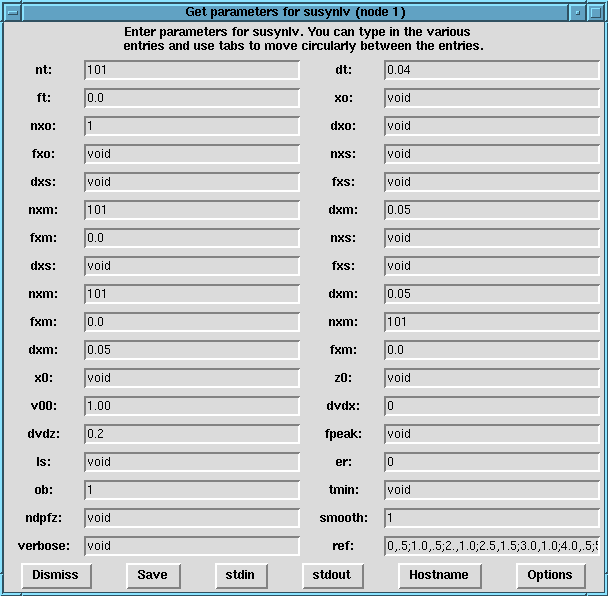
Figure: Window for entering parameters values for the application
susynlv. It is obtained by clicking twice on the
left hand side button of the mouse on the application icon.
Clicking twice on the left hand side button of the mouse on an application icon
will bring up the window that allows the insertion of values for the
parameters of the application represented by that icon.
Figure is an example of a window to get
parameters for the susynlv SU application. This window
has a  button that allows the specification of a hostname
for that application;
also, by using the buttons
button that allows the specification of a hostname
for that application;
also, by using the buttons  and
and  , filenames
can be entered to setup the file names for the standard input and
output, respectively, of
that application. Only the root node is allowed to have the standard
input redirected; each other application in the sequence must expect
its input from its parent node. Similarly, only leaf nodes of the
graph (sequence) are allowed to have the standard output redirected.
The
, filenames
can be entered to setup the file names for the standard input and
output, respectively, of
that application. Only the root node is allowed to have the standard
input redirected; each other application in the sequence must expect
its input from its parent node. Similarly, only leaf nodes of the
graph (sequence) are allowed to have the standard output redirected.
The  button allows the insertion of some parameters under
the format: -option option_value; this syntax for parameters is
understood for some X-Windows related applications that are part of SU,
like suxmovie for example. Clicking the
button allows the insertion of some parameters under
the format: -option option_value; this syntax for parameters is
understood for some X-Windows related applications that are part of SU,
like suxmovie for example. Clicking the  button will
save the parameter values entered; alternatively, hitting the Enter
key on any parameter field will automatically save all the parameter values
entered too. Using void as a parameter value, indicates that the default
value must be used.
button will
save the parameter values entered; alternatively, hitting the Enter
key on any parameter field will automatically save all the parameter values
entered too. Using void as a parameter value, indicates that the default
value must be used.
Finally, clicking and holding the middle button of the mouse on a application icon will allow the user to move that icon to any position inside the drawing canvas.