


![[pdf]](icons/pdf.png)
|
|
|
|
| Hypercube viewer | |
|
There are four sub-menus under picking: File, Size/Distance, Color, and Draw. The File menu allows you load and save all picks. The picks are saved in ASCII format with the pick location and color stored in the file. The Size/Distance sub-menu allows you to change the range in which you can see a pick and the size of the square corresponding to a picked location.
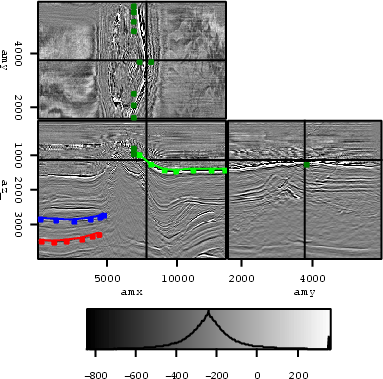
The Color sub-menu allows you to change the active pickset. It also allows you to view a specific pickset or all the picksets. The Draw sub-menu gives you the option to display the picks as either lines or points. In the simple logic of the program, in order to draw a line it must have an axis that is single valued. For example, in velocity analysis you will not select more than one velocity per time sample. In the Draw sub-menu you select the multi-valued axis. This indicates that any slice that contains the multi-valued axis also contains a single valued axis. A line can then be drawn connecting points along the single valued axis. By default, the multi-valued axis is set to the first axis (depth). Figure 4 shows an example of picking. Note the three different colors used and how lines appear in the front and side views while points are displayed in the top section.
|
|---|
|
picks
Figure 4. The result of picking three reflectors. Note the use of a colorbar and how picks show up as line in the front and side panel but as points in the top panel. [NR] |
|
|
|
|
|
|
| Hypercube viewer | |
|